

Your home streaming network performs flawlessly throughout most of the morning, but as the evening approaches, your streaming apps experience sudden, random drops in quality. The video freezes, audio tracks drop out for a second, or your remote control app becomes laggy and unresponsive.
When streaming performance drops at specific hours of the day, it is rarely a coincidence or an issue with your streaming hardware. Instead, you are likely experiencing environmental wireless interference. The modern smart home is flooded with automated gadgets that can create invisible data traffic jams right in your living room.
The Architectural Deep Dive: Shared Frequencies and Packet Collisions
Your streaming hardware relies on clear airwaves to send and receive heavy video data packets from your router. However, wireless space in the average modern home is limited. A high-resolution video stream can easily be disrupted by the signals from neighboring devices.
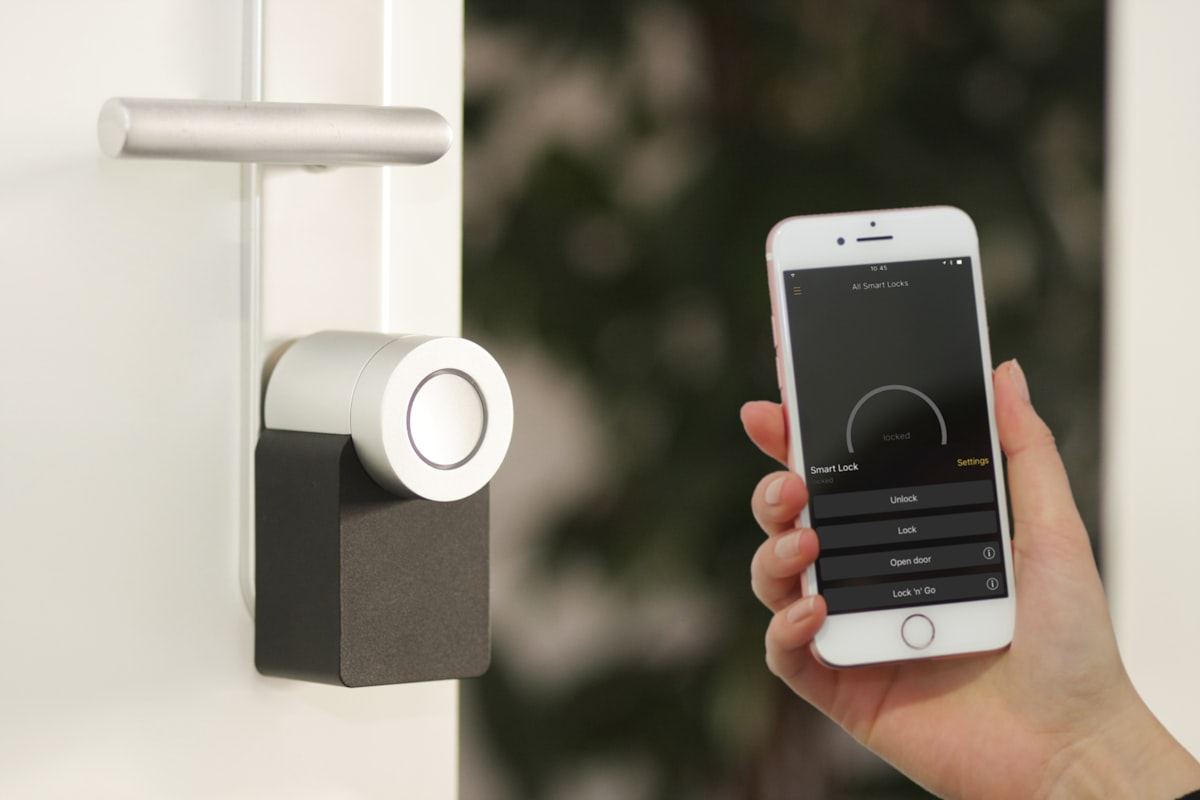
- The Shared Smart Home Spectrum: A huge portion of everyday smart accessories—such as wireless security cameras, smart light bulbs, voice assistants, and smart plugs—operate exclusively on the 2.4GHz frequency band. Every time a smart security camera uploads a clip or a smart plug pings a server, it sends a burst of radio traffic, causing data packet collisions.
- Wireless Remote Control Bleed: Many modern streaming devices use Bluetooth or direct Wi-Fi connections for their remote controls. If the local wireless environment is flooded with smart home noise, the remote control will drop packets, leading to input lag or causing your streaming device to slow down.
The “Don’t Panic” Calibration Checklist
- Shift to Less Congested Wireless Channels: Log into your router’s settings menu and find your wireless channel controls. Change your 2.4GHz band from Auto to a fixed channel—ideally 1, 6, or 11. These are the only three channels on that frequency band that do not overlap with one another.
- Create an Isolated Network for Smart Gadgets: Most modern routers allow you to turn on a secondary Guest Network. Enable this feature and move all of your smart bulbs, plugs, and cameras onto it. This keeps your main network clear for high-demand streaming hardware.
- Adjust Physical Hardware Spacing: Ensure your wireless router is placed at least 3 to 5 feet away from other electronics, large metal objects, and thick mirrors, which can bounce and distort wireless signals.
Clean Resolution
When your local environment is flooded with competing wireless signals, standard automated router features often struggle to maintain a clean connection.
Clean Your Local Wireless Environment
Our remote engineering unit specializes in analyzing wireless environments, mapping local signal use, and configuring custom network segments to ensure your video streams have a clear data path.